 spinzester
A quick tour of the main screens. spinzester wraps spinitron.com with a button bar at the bottom — the Home button always takes you back to the start.
Ready to dive in? Get it on the App Store →
Home screen
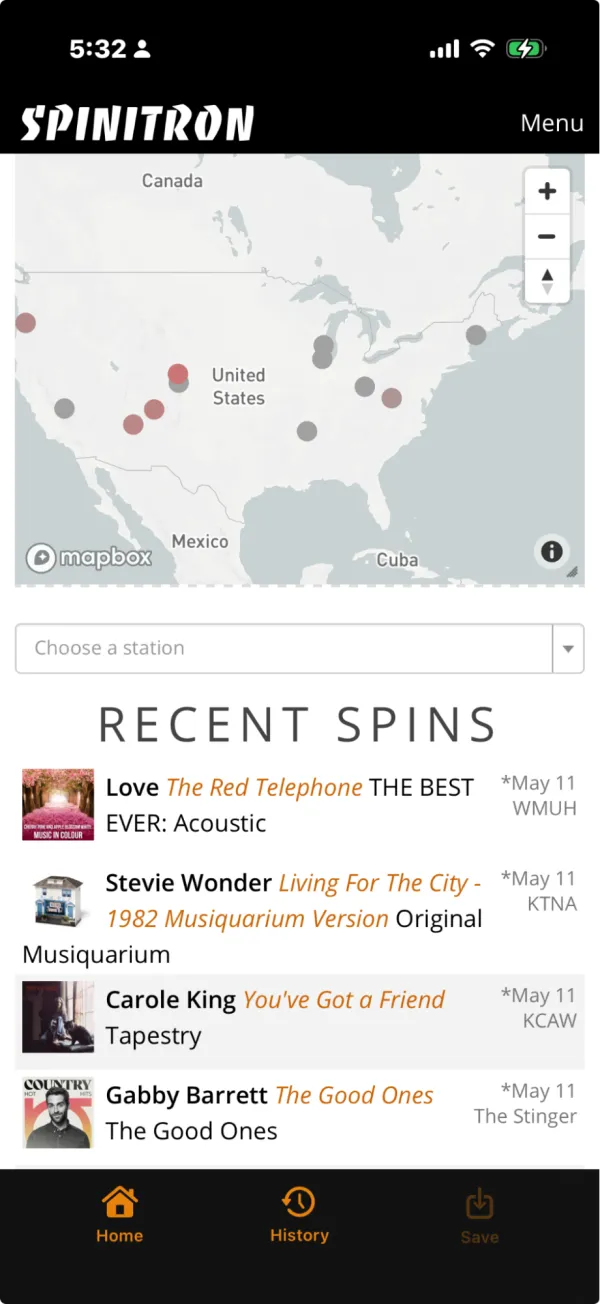
The home screen shows Spinitron’s home page with the spinzester button bar at the bottom. Recent Spins updates live as DJs around the country play songs. Scroll up a little to pause the updates; scroll back to the top to resume.
Tap a song that interests you to open the playlist containing that song.
Playlists
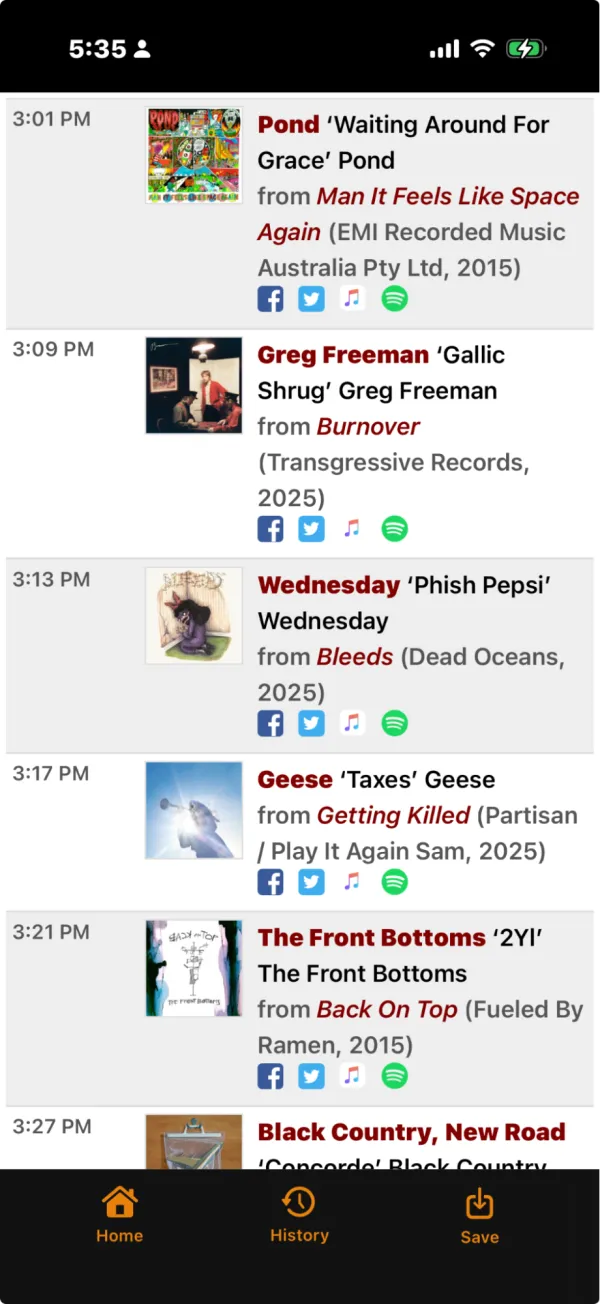
Once you’re on a playlist, tap any album cover to start playing from that song. Full songs play through your Apple Music subscription — no more 30-second previews.
Press History in the button bar to jump back to any playlist you’ve opened. Press Save to save the playlist to Apple Music or Qobuz.
Station & program info
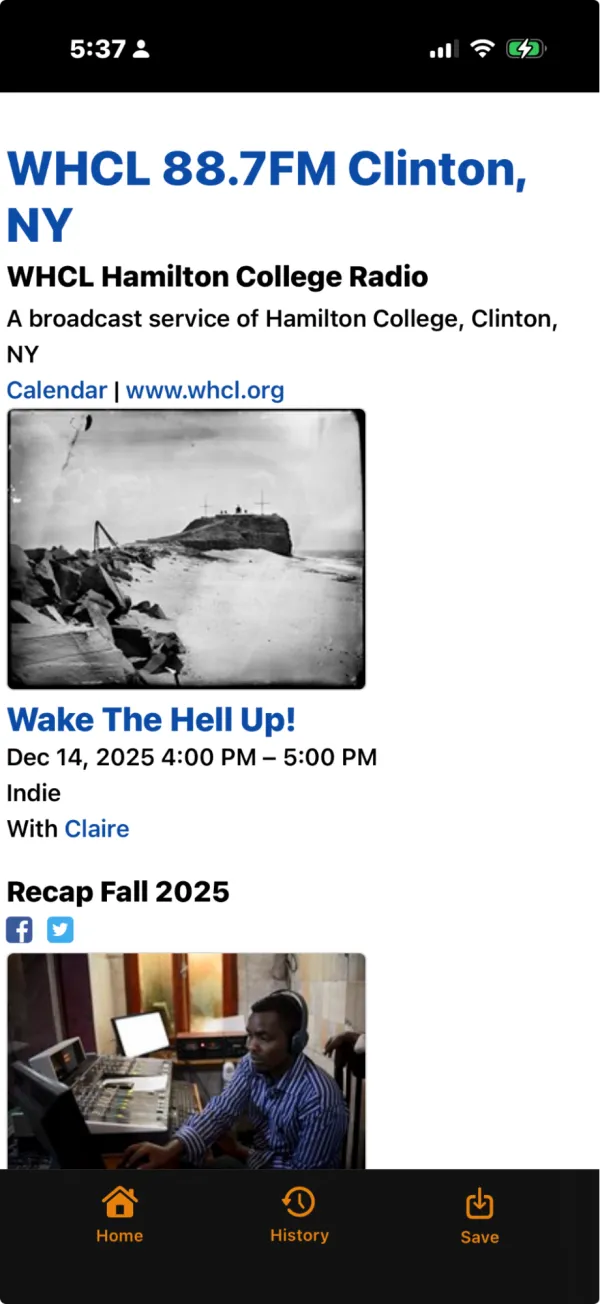
At the very top of a playlist you’ll see station and program details. Tap the program name to view playlists from previous airings. The Calendar link shows the station’s full programming schedule, and when available, a link to the station’s website.
The Home button — or a left swipe — takes you back to the home screen.
A few more things
Back on the home screen, above Recent Spins, a dropdown lets you pick a station directly — you’ll land on the playlist for the program that’s currently live.
The menu at the top right has two extras:
- Search — free-text search across tracks played in the last 24 hours.
- Chart — the albums most played by stations reporting to Spinitron. Tap an album cover to open it in Apple Music.
Finally, the home screen has a live-updating map showing the location of the last spin. Zoom in to see individual station names.
Get it on the App Store
spinzester is free, with NO ADS. You’ll need an Apple Music subscription for full song playback.
Download on the App Store